alvinfunborn

THE PERSONAL TOOLBOX OF ALVINFUNBORN

Small tools.
Less friction.

I build open-source tools for the things that keep getting in the way of everyday work.

Finding a conversation. Reaching across a desktop.
Knowing which language you’re about to type.

Explore the projects

SELECTED PROJECTS

Three ways to keep moving.

Different tools.
The same attention to everyday friction.

01 / AI CODING WORKFLOWS

Attend

Find the task.
Pick up the thread.

When work spreads across AI coding sessions, the hard part becomes remembering where everything stands. Attend brings the conversations and the context back together.

  • Find tasks with tags and custom labels.
  • Scan multiple session columns; follow forks, Pins, and comments.
  • Review attention signals and work-pattern statistics.

Local web console · Multiple coding agents
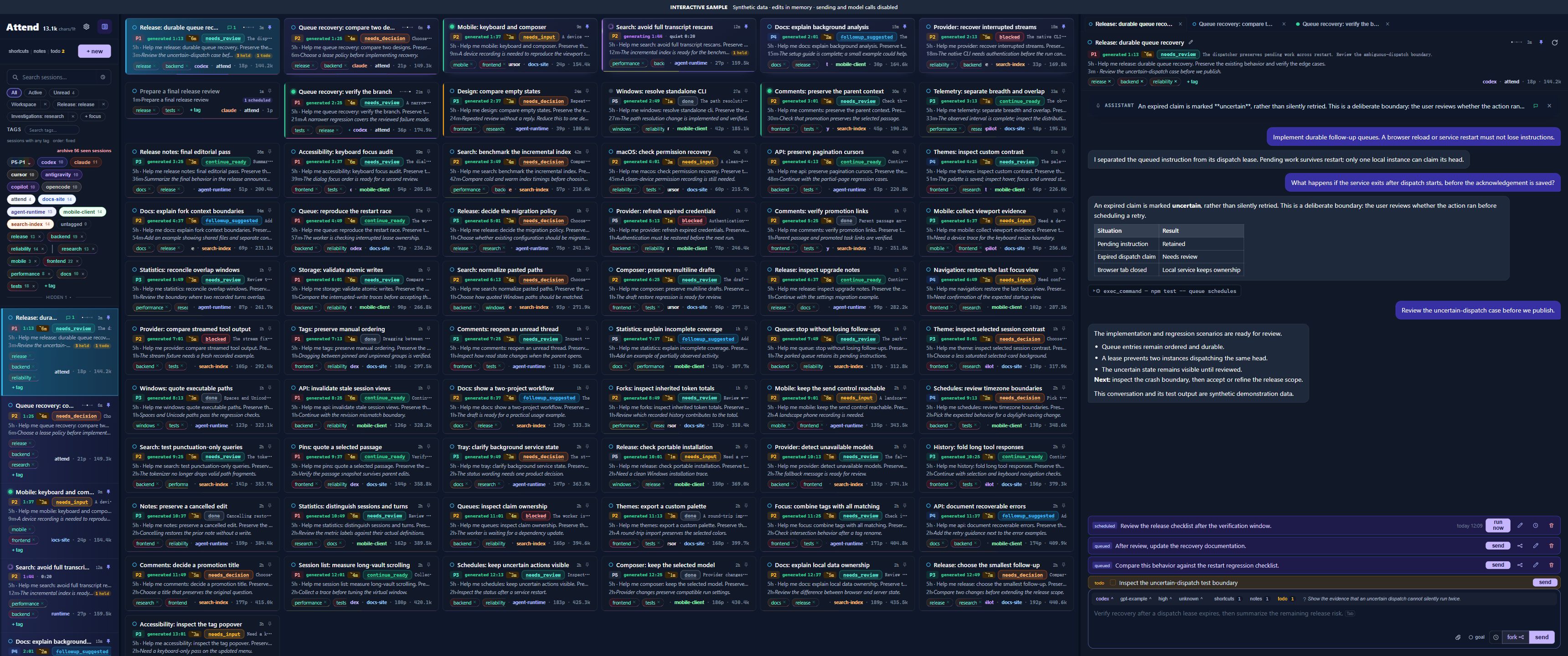
ATTEND / THE ACTUAL CONSOLE
Attend at 3440 × 1440 with six session columns, many parallel tasks, handoff analysis, tags and a conversation
3440 × 1440 native workspace with six session columns and synthetic tasks. Try the ultrawide interactive tour on the project site.

02 / DESKTOP NAVIGATION

Screen Buoy

Your keyboard.
Your whole desktop.

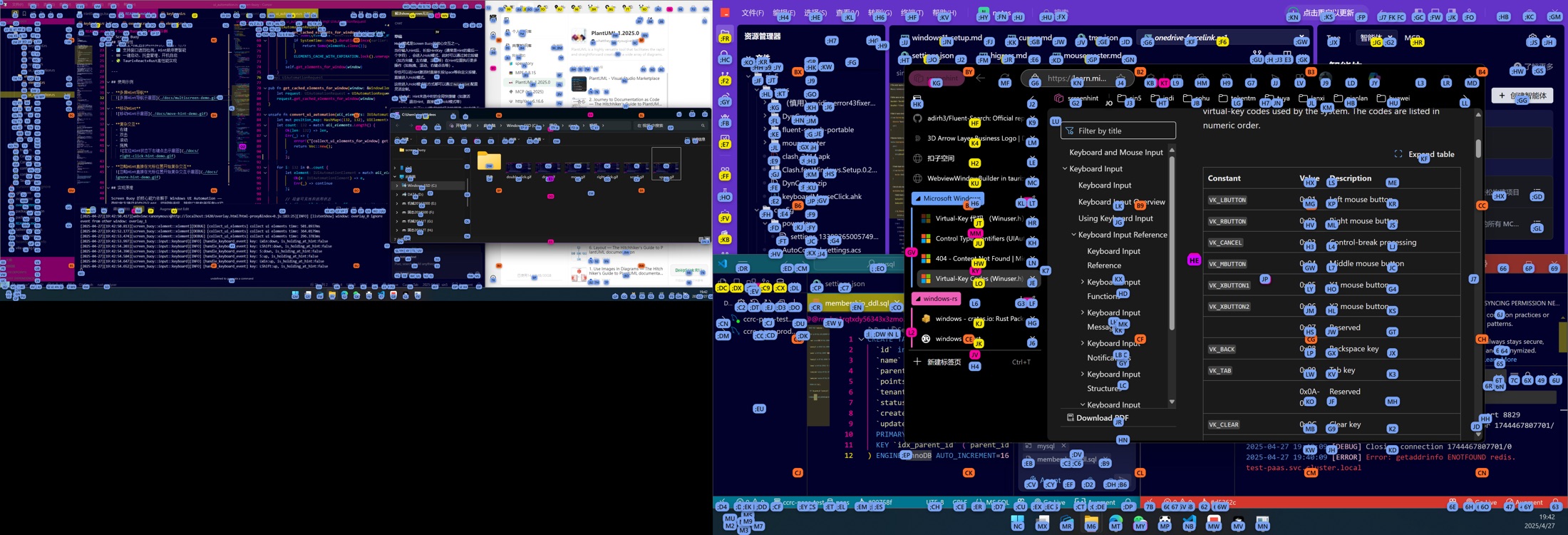
Jump to a button on another monitor without breaking your typing rhythm. Screen Buoy overlays letter hints across the desktop, with controls for the actions that follow.

  • Navigate multiple monitors with letter hints.
  • Click, scroll, and drag from the keyboard.
  • Customize hint styles, grids, and key bindings.

Windows & macOS · Multiple monitors

SCREEN BUOY / REAL DESKTOP CAPTURE
Screen Buoy letter hints across applications on a real multi-monitor Windows desktop
Alt / ⌥ + HShow hints. Type a label. Reach the target.
Actual multi-monitor capture from the project. Watch scrolling and dragging on its website.

03 / INPUT AWARENESS

DynCursor

Know the language.
Before the first letter.

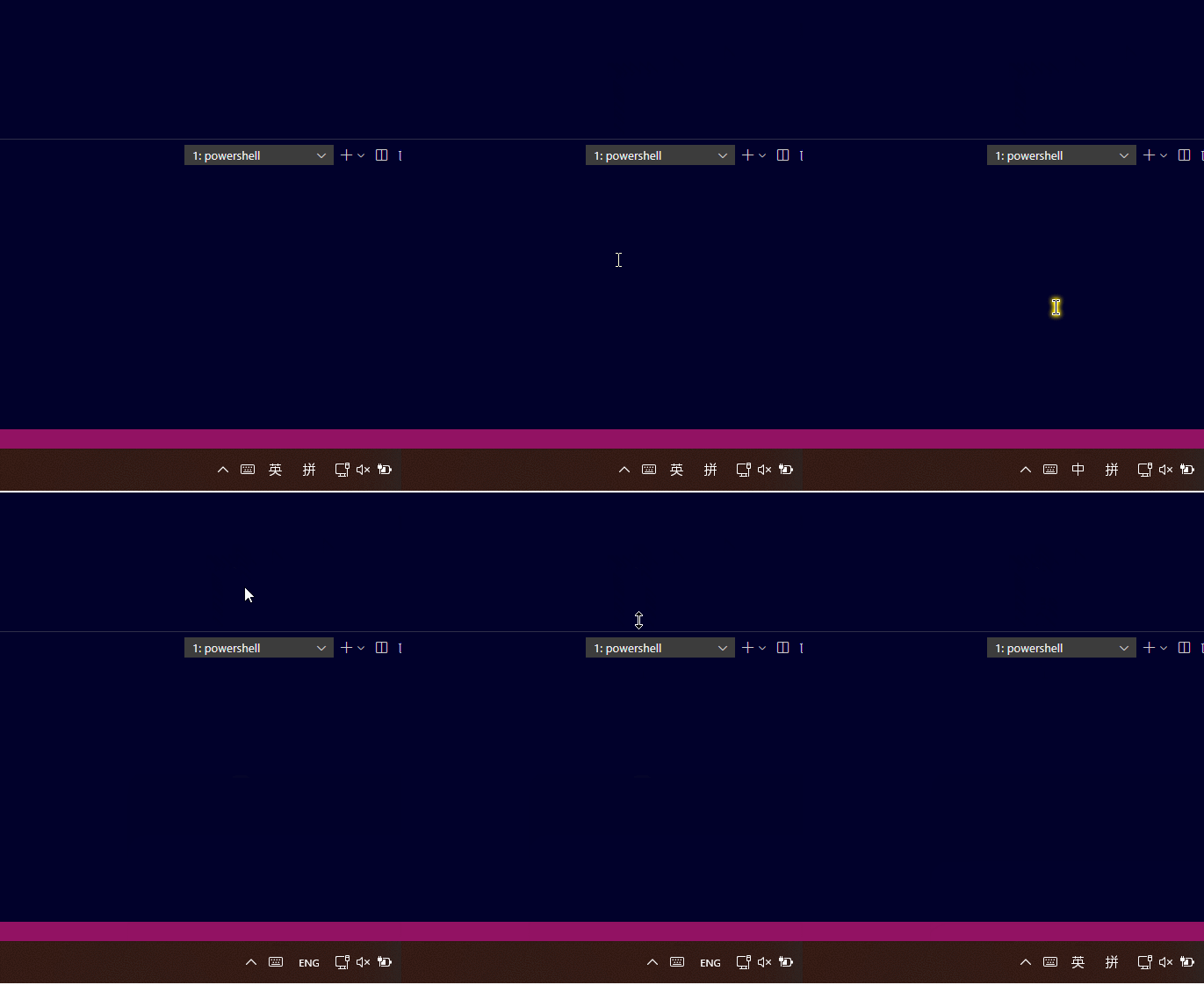
Stop glancing at the taskbar or typing a test character. DynCursor changes your mouse pointer with the active keyboard layout and IME state, so the cue stays where you’re looking.

  • See input-state changes directly in the pointer.
  • Choose custom arrow, text, and link cursors.
  • Manage settings, startup, and pause from the tray.

Windows · Keyboard layout & IME state

A SMALL CHANGE. A CLEAR SIGNAL.
Default stateCustom state

The input state, right at your pointer.

Watch the original recording
Original product artwork. The linked recording shows the core behavior in an earlier version.

WHY THESE EXIST

A recurring annoyance
is a good place to start.

These projects began with things I wanted to work better in my own day. A task I couldn’t find. A screen I kept reaching for. An input state I kept second-guessing.

I build a tool, use it, and keep refining it. Sharing the source lets other people try it, understand how it works, and help make it better.

01

Start with the workflow.

A useful tool earns its place by making a repeated action easier.

02

Keep the controls close.

Put the context, action, or signal where it’s needed.

03

Build in the open.

Read the code, report a rough edge, or make a contribution.

FIND SOMETHING USEFUL?

Try it in your own workflow.

Each project site has its own demos and getting-started guide.
For feedback, bugs, and ideas, the project’s GitHub Issues is the best place.

Browse all repositories